Shop
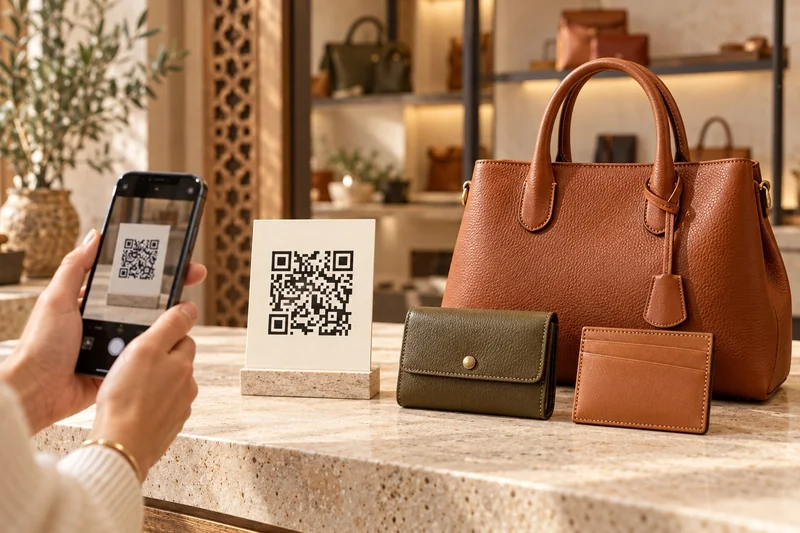
Show bags and accessories with a photo, a description and useful documents.
 Ideas are worth sharing.
Brands and businesses
Connect products and printed materials to a clear page with descriptions, documents and useful details, all from one QR code.
Download the brochurePDF · 2 pages
Start free, with no payment card.
One page per product, with several QR codes if needed: choose your plan by the content you manage, not the number of printed copies.
Show bags and accessories with a photo, a description and useful documents.
Link packaging and labels to product pages, then keep their information up to date.
Keep products in one library, track scans and export QR codes for your materials.
Example: 30 products with 3 QR codes each use 30 references and 90 QR codes. Pro allows up to 100 editable references and 1000 registered QR codes. A standalone QR also uses one reference.
Store product pages and documents in one library. Find the content you need to update.
Check documents in a private preview before publishing the files your visitors should see.
Update an editable reference without reprinting its QR code. Prepare files for printing from your workspace.
A connected product counts once, even with several QR codes. Choose a plan to fit your catalogue and check the detailed limits on the pricing page.
On a label, a display or packaging, the QR opens information your customer needs before buying or when using the product.
An accurate name, faithful photos, a description and useful documents: instructions, usage tips or a technical sheet. Review the phone preview and confirm publication before sharing the QR.
Yes, you can update the content of the same hosted page without replacing the QR that opens it. Several printed materials can link to that page. Check the published page after each change.
QR66 presents information intended for customers. ActionERP keeps its role for inventory, quotes and invoicing. Define which data to publish and who maintains it; synchronising both tools requires an integration prepared for your use case.
Understand what stays fixed, what can change and what to check before printing a QR for your menu, contact details or products.
Enter content and manage additions and changes with your plan’s tools. Initial data entry or updates carried out by our team must be agreed before payment.
Our team guides subscription and activation. Contact us for help getting started: its scope and the activation date are confirmed before payment according to your request.
Your plan’s exports are downloadable files. Printing, table stands, stickers, photography, hardware, SMS and on-site installation are separate.
Download the brochurePDF · 2 pages